Quick answer
Use native PS5 broadcast for the fewest moving parts. Use a capture card + OBS when you need custom scenes, alerts, richer camera layouts or local recording.
What you need
- PS5
- YouTube or Twitch account
- Stable network
- Capture card + computer only for the OBS route
Verification: Rockstar, PlayStation and OBS primary documentation.
Jump to a section

Before a capture card: the PS5 HDCP setting
Sony states that PS5 supports external HDMI capture devices when HDCP is disabled in Settings. If a capture card shows a black screen while the console itself works, check this before changing OBS, cables or resolution settings.
HDCP protects copyrighted video output. Keep it enabled for protected entertainment apps and disable it only when the external gameplay-capture workflow requires it.
High-value troubleshooting check
Black screen on a PS5 capture card does not automatically mean the card is broken. Verify HDCP first.
Sources for this section
Choose the simplest path that fits your stream
PS5 can broadcast directly to linked streaming services, which is the fastest route for gameplay + voice. Use a capture card and OBS when you need multiple scenes, richer overlays, external alerts or a reusable branded production.
Decision rule
If gameplay + voice is enough, stay native. If your brand depends on scenes, alerts or camera layouts, use OBS.
Swipe the table to compare columns.
| Need | Native PS5 | Capture card + OBS |
|---|---|---|
| Fastest setup | Best fit | More setup |
| Custom scenes | Limited | Full control |
| Browser alerts | Limited | Yes |
| Fallback scenes | Basic | Easy to prepare |
Native PS5 broadcast: practical setup
- 01
Link the service
From PS5 broadcast settings, link the YouTube or Twitch account you will actually use.
- 02
Set video and audio
Choose the available resolution and frame rate, then confirm microphone and Party audio settings.
- 03
Run a private test
Verify account access, microphone level and the final viewer output before launch day.
If Twitch or YouTube refuses to start+
- Check Twitch 2FA if Twitch is the destination
- Verify the YouTube account if live streaming is restricted
- Unlink and relink the service if authentication is stale
Capture card + OBS: build the signal chain once
Keep the hardware path simple. Add creative layers only after the capture is stable.
- 01
Confirm clean gameplay
Add the capture card as a Video Capture Device and verify picture, frame rate and audio.
- 02
Add the camera and overlay
Keep gameplay at the bottom of the source stack. Add webcam and frame above it.
- 03
Add alerts last
Browser widgets are useful, but they should not be required for the stream to function.
Recent GTA VI-specific walkthrough. The embedded chapter starts at the PS5 setup; primary platform documentation remains the factual reference.
Open on YouTubeLaunch-day check in five minutes
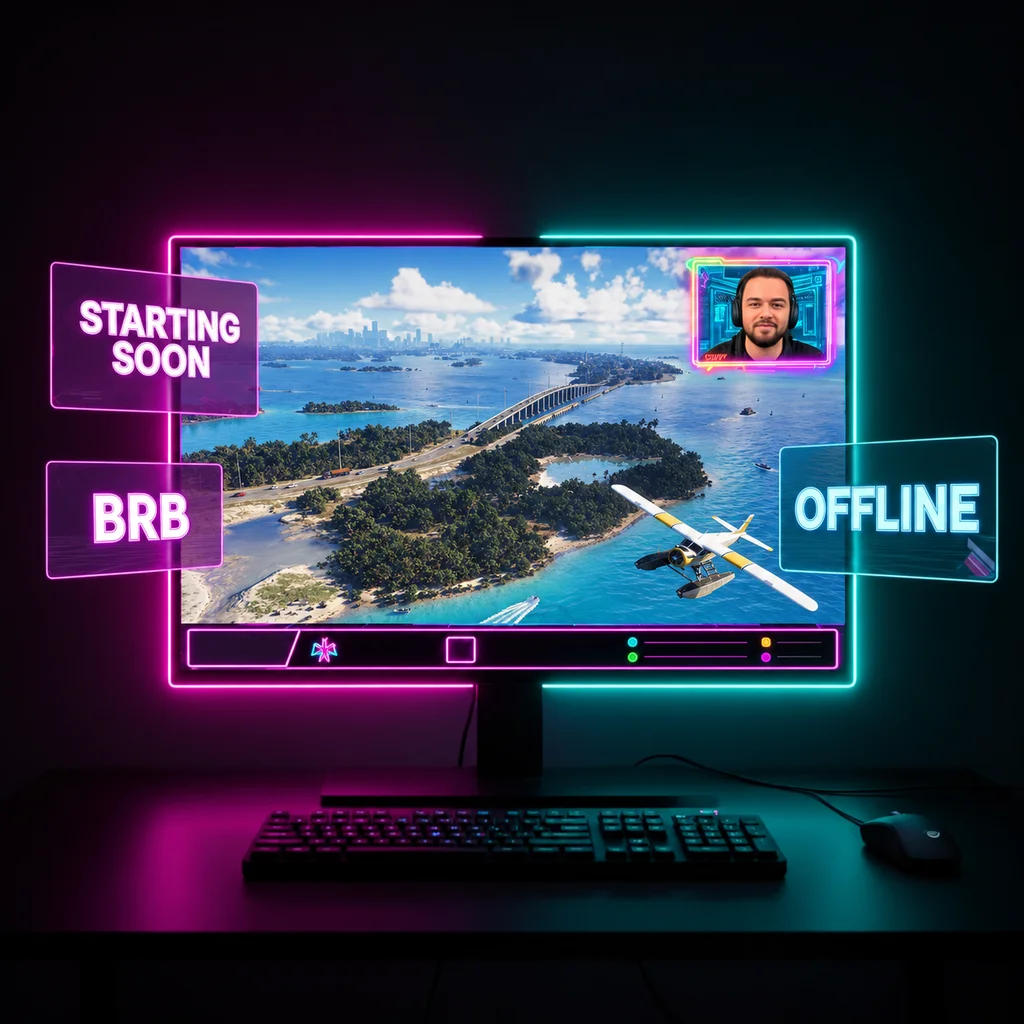
- Gameplay visible with no important HUD covered
- Microphone clearly louder than background noise
- Game audio present but not masking speech
- Correct stream account and title selected
- Fallback scene ready
- One local test recording reviewed at normal viewing size